Introduction: Persona
Let's set the stage quickly. Who are you? You're someone like me.
You experiment with AI. You use Linux. You're not a researcher but a hobbyist programmer looking to improve your technical skills by learning and experimenting with generative AI projects.
You want to buy a laptop for some AI development. Times are tough right now, but you need something to build your technical skills. You hope to save money in the long run by doing your AI development locally and experimenting with integrations with some occasional model fine-tuning and training.
You mostly are interested in working with generative AI:
- LLMs (text/text, e.g.,
gpt-oss-20b) - Image generation (text/image, e.g.,
FLUX1.schnell) - STT (speech/text, e.g.,
whisper)
For model fine tuning, you are fine-tuning models within the 50M-3B parameter range and want to experiment with unsloth.
You wonder how you can get this done within a budget. You only have about $1000-$1300 USD to spend!
The 8GB VRAM Laptop
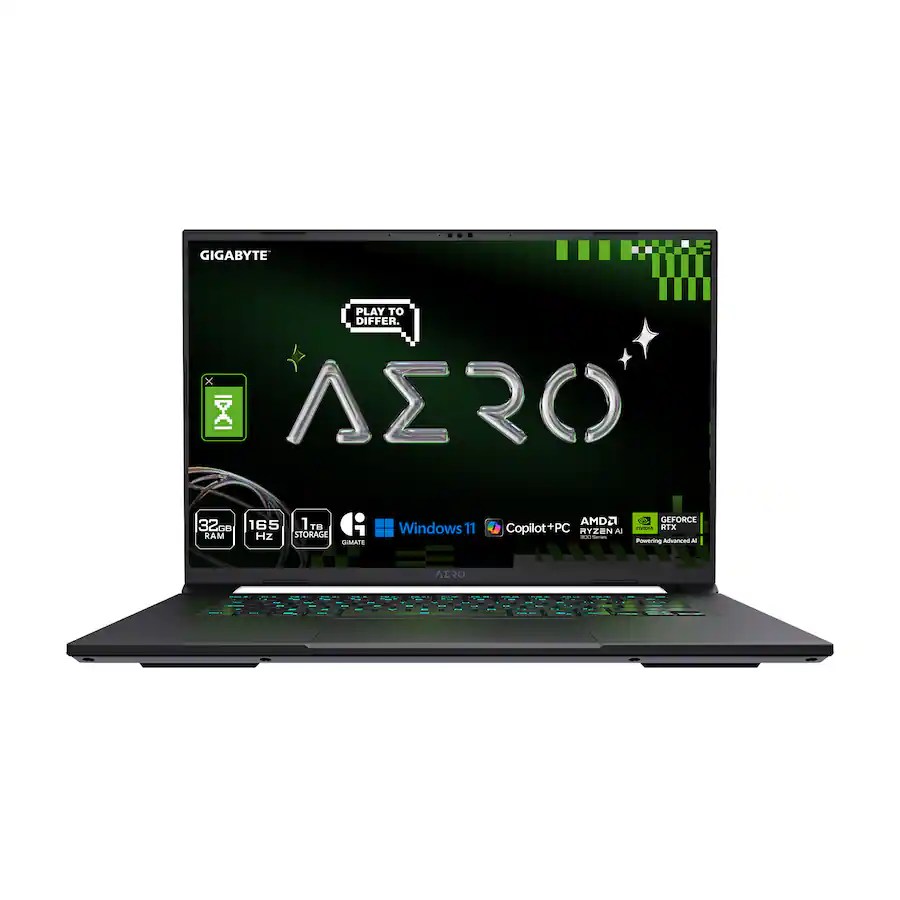
I will attempt to convince you that the dreaded 8 GB VRAM laptop ($1000-$1300 USD budget) has a place in 2025 within local AI development.
Lots of laptops are on sale right now. You might be tempted to get one of these for AI work. Before you set off to go buy a new machine just because it has an NVIDIA GPU, consider a few other things when investing in a laptop for AI.
As of 2025, most laptops you will see at the $1000-$1300 USD price point with an NVIDIA GPU will have 8 GB VRAM. This might seem like very little VRAM to do interesting AI work but stay with me.
I will be using my personal experience to show some examples. For context, I picked up a Gigabyte AERO X16 for $1250 on sale at BestBuy.
There are 2 variations of this laptop. The cheaper option is often on sale for $1049 here with a NVIDIA GeForce RTX 5060 GPU. That's about the only difference.
Both have the same Display, RAM and SSD. Only difference here is the GPU. But is it really? Both have 8 GB VRAM. In this case, in the world of generative AI, VRAM is the most important to even be able to run models.
I personally recommend the $1049 5060 option as it is very affordable. Scouring deals for the better part of this month, I haven't found anything better.
For myself, I splurged and got the 5070 version for $200 more. I am not sure if it is worth it, but I have been happy so far.
The rest of this post will be using the Gigabyte AERO X16 as my reference laptop for this class of machine being discussed.
The most important specifications in any AI development PC is going to be the GPU and RAM. Both concerns are really just the capacity. My specific machine has:
- GPU: NVIDIA GeForce RTX 5070 with 8 GB GDDR7 VRAM.
- RAM: 32 GB DDR5-5600. The RAM is upgradeable.
If you're shopping around for an affordable laptop that has a mid-range discrete GPU, you will come to accept that the price point for this type of laptop is pretty unforgiving when it comes to GPU choice.
You are pretty much stuck with 8 GB VRAM. This is really important to understand if needing to run larger models.
If you want to aim for being able to run larger models, you can't just upgrade the GPU in a laptop. In that situation, consider upgrading system memory (RAM).
The key point here is that upgradeable system memory allows you to at least load models and not crash while doing so. Performing inference with larger models can sometimes be doable on systems with low VRAM, as more system RAM allows you to offload models to the CPU when needed.
Performance won't be ideal with CPU offloading, but slow inference beats no inference.
CPU
The AERO X16 has an AMD Ryzen AI 7 350 CPU. I would consider this to be a mid-range laptop CPU with 8 cores and 16 threads in total. It has a hybrid core architecture, which means that 4 cores are "full" Zen 5 cores while the other 4 cores are lighter "Zen 5C" cores. I haven't noticed any performance difference yet with this CPU setup. Everything in general feels very snappy.
It's important to point out that a CPU that is "good" or "bad" is relative to the developer. Performance evaluation of a specific CPU model is very subjective and based on the developer workflow. For example, my general CPU tasks are fairly light: web browsing, file transfer and coding (Python/C/JavaScript). I generally don't need a massive amount of CPU power or high core counts if I am working on a laptop. If I need more resources, I'd go use my desktop.
The main reason I chose this CPU is its decent integrated GPU: the AMD Radeon 860M. It can drive the 2560x1600 laptop display at 165 Hz!
Having a strong integrated GPU is really important overall when it comes to resource management and working with 8 GB VRAM for AI development. I'll explain why in the next section.
Having a Good iGPU
Laptops with discrete GPUs also have an integrated GPU (iGPU). If you have purchased a laptop with an Intel CPU (Core), you might have an Intel Arc GPU to go along with your new machine. If your laptop has an AMD CPU (Ryzen), then it will be a Radeon GPU.
Why is this important? Integrated GPUs are helpful when using your laptop with a desktop environment (e.g., GNOME, Plasma, etc).
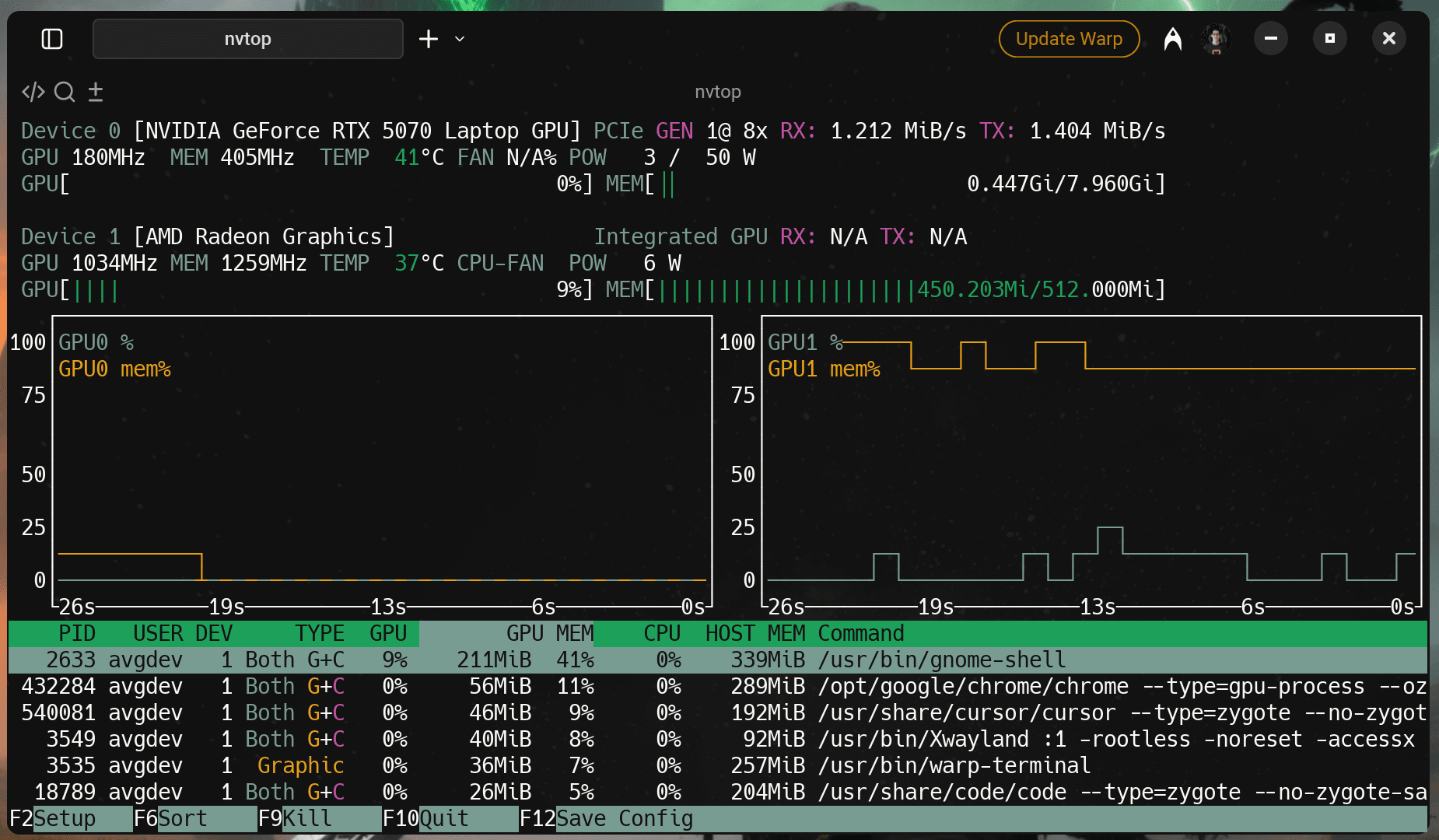
Your desktop environment is also GPU accelerated and so are the other programs you are running. These processes consume GPU memory and may use up to a quarter of your available VRAM if running on a discrete GPU (dGPU)! If you have an 8 GB card, running a desktop environment and other GPU-memory demanding things like Chrome, GPU accelerated terminals (alacritty, warp-terminal, etc.), Slack and screen recording can easily take up 2 GB of VRAM already!
Having an iGPU is helpful for laptops. The iGPU can be chosen to be the primary device for rendering your desktop environment. This is usually automatic and the end user doesn't necessarily need to care about how to do this assignment. I haven't had to do any special configuration yet, so your experience will most likely be similar.
You will definitely want to be leveraging your iGPU for non-AI compute tasks. If your GPU configuration isn't configured to use both the iGPU and dGPU, look into your UEFI firmware settings to ensure that the iGPU isn't disabled intentionally.
If you want to also confirm that your current Linux system isn't rendering the desktop environment using the NVIDIA hardware, you can use nvtop to list all your GPUs (integrated and discrete) and see the processes associated with the GPU.
To install nvtop on Ubuntu, it's just:
sudo apt install nvtopIf on Fedora:
sudo dnf install nvtopnvtop is such an essential tool, I recommend it install on all systems regardless if doing AI development with the GPU, or not.
In short: Ideally, under no AI load, the discrete GPU should have minimal VRAM usage from processes.
The Local AI Workload
If you browse /r/localllama on reddit, you might find that a lot of the reasons why one would use local AI are mostly centered around privacy and control.
Privacy and control as reasons do make sense. For privacy, common use cases include using an LLM to search through sensitive documents (RAG scenarios) without sharing data with external services, or asking personal questions that you don't want recorded in a database.
For control, local AI enthusiasts don't want their user experience dictated by an external cloud service provider. Cloud service providers can throttle, remove, or change their terms of service without much notice. This results in a disruption of personal workflows.
All that is great, but it doesn't completely represent the real use case of a developer.
I want to go beyond the typical reasons of privacy and control for using local AI.
Let's take a look at this from the perspective of a software developer who is using generative AI as a "feature" within their entire application system. The generative AI model in this case isn't the 80% of the application itself, but rather the 20% that will take the application's user experience to an entirely different level.
The workload performed on a system within this price point consists of projects which may involve:
- Testing system prompts for an LLM to integrate into your application.
- Testing your integration of an LLM with an OpenAI compatible API. This allows you to iterate rapidly and stress-test your application logic without worrying about rate limits or costs before deploying to a larger cloud model.
- Creating image augmentations using image generation models for datasets to be used for image classification fine-tuning of a VLM (vision language model).
- Extracting audio from presentations/meetings and transcribing them using a speech to text model such as
whisper.
Of course, there are more scenarios, but these are some of the ones that come immediately to my mind.
Why 8 GB of VRAM Could Work
With the workloads mentioned above, we can accomplish most scenarios with just 8 GB of VRAM.
llama.cpp, vllm and other LLM inference engines allow for CPU offloading if there is not enough VRAM. For example, if a model is 20 GB and you only have an 8 GB card, you can load 8 GB of the model to the GPU and 12 GB to the CPU. There will be a performance hit doing this, but you will be able load a good number of models this way.
On the image generation side of things, ComfyUI allows for model offloading to CPU too automatically.
We will explore more with concrete examples later on in this article.
Storage, Display, Keyboard/Touchpad and Sound
These are secondary features of a laptop that won't really affect your ability to do AI development. Storage has some impact, but it is so easily upgradable that I don't find it to be a stressful part of the shopping experience at all.
My recommendation is that at least 1 TB of PCIe 4.0 NVMe storage space should be considered. The Gigabyte AERO X16 comes with 1 TB of NVMe storage and is therefore sufficient. More is better, although that just depends on your budget.
Consider that you will be loading models that are over 10 GB in size and will even have some that exceed 20 GB! If you are also interested in gaming with your GPU, you will need to consider space for the game files too.
Currently, RAM and SSD prices are getting to be pretty expensive in 2025. 1 TB SSD upgrades are anywhere from $80-$100. It is still at a price where we can probably stomach.
But in the end, it is better to buy your laptop already with a 1 TB SSD so you don't have to do additional work with an OS installation, etc.
As far as the quality of display goes, look for IPS/OLED displays with high resolution. For AI development, you'll be writing a lot of code, so a high refresh rate isn't as important if it breaks the budget for quality. I have personally found 2560x1600 to be the sweet spot. The AERO X16 includes a 2560x1600 IPS display with a 165 Hz refresh rate!
Keyboard, touchpad, and sound—well, these are up to you, but at the $1000-$1300 USD budget, you may find these secondary qualities hit-or-miss.
I do appreciate the RGB backlit keyboard the AERO X16 provides. It works on Linux too!
Bottom Line - Prioritize at least 1 TB of storage and a good display if money is tight. If the keyboard or touchpad sucks, plug in a different keyboard or mouse.
Summary: When Shopping for a Deal
Given that 8 GB of VRAM is basically non-negotiable at the $1000-$1300 USD price point, you need to be smart about the other components to make this work. Here is your deal-hunting checklist:
Non-Negotiables (The "Must-Haves")
- A Strong Integrated GPU: Look for Intel Arc or AMD Radeon 7x0M/8x0M. This is critical for offloading your OS rendering so your NVIDIA card is 100% free for AI tasks.
- Upgradeable RAM: Avoid soldered RAM. You need the ability to expand to 32GB or 64GB to enable CPU offloading for larger models.
- Fast Storage: 1 TB PCIe Gen 4 NVMe for being able to store models!
Secondary (The "Nice-to-Haves")
- High Resolution Display: 2560x1600 is ideal for reading code and viewing documentation side-by-side.
- Keyboard & Trackpad: Don't let a mediocre keyboard kill a great spec deal. You can always plug in external peripherals, but you can't solder on a new GPU.
Workload Examples for AI Development
This entire section is dedicated to showing some example use-cases of what we can achieve using local AI with a very humble laptop.
If you're patient and AI is just part of your development workflow, you'll find the processing time quite tolerable.
System Prompt Testing
At some point, you'll want to develop system prompts to customize model behavior—whether for immediate use or as preparation for model fine-tuning. Testing system prompts locally lets you iterate freely without worrying about token costs or rate limits.
If your target model is in the cloud and is much bigger, your system prompt will most likely translate well and work even better!
The easiest way to get started is to install lmstudio: lmstudio. It uses llama.cpp as a backend. If you're not experienced with building software from source or don't want to compile llama.cpp, lmstudio provides pre-built binaries ready to use right out of the box.
Here are some models I recommend for development and testing:
gpt-oss-20b- One of the most popular models for lower-end GPUs. It is an open source MoE model from OpenAI. It is trained in MXFP4 precision and uses very little memory relative to its size, making it good for general-purpose text generation and natural language tasks.gemma-3-4b-it- A multimodal model from Google that supports both text and image. The BF16 version will load with some CPU offloading.qwen3-vl-4b-thinking- Another multimodal model from the Qwen team at Alibaba that supports text and image with reasoning (<think></think>) capabilities!
With this type of system, you can use CPU offloading to run part of the model on GPU VRAM and part in system RAM. This lets you run models at higher precision (float16 or bfloat16), which provides better accuracy than heavily quantized versions.
For all the recommended models I listed above, I run them day-to-day at their highest precision possible.
With a 32K context window, I can get close to 8 tokens/s running qwen3-vl-4b-thinking on the 5070 8GB laptop GPU. Not bad for development!
Task Decomposition Example
Here is an example of system prompt engineering. The use-case: given a user instruction that defines a goal, break it down into a series of steps that an agentic AI can act on.
Suppose the user goal is:
User Message
change the selected text to be a Heading 3Using a model like gemma-3-4b-it without any sort of prompting, we get a result that looks like this:
Model Response
Please provide me with the selected text! I need the text you want me to change into a Heading 3 before I can do that. 😊

Once you paste it here, I'll format it as an H3 heading.
Er, okay. That's not what I would like to see. I was expecting a bullet list of tasks.
Let's now apply this system prompt to the model and see how close we can get.
System Prompt
You are an expert GUI agent planner. You have an elite ability to take in an overall user-defined goal as a prompt, and decompose it into a series of actionable steps for downstream applications such as a GUI agent to act on.

Inputs are user prompts that define the goal, and outputs are lists of granular, actionable instructions that achieve this goal.

# Output Format
Output format is a list of markdown bulleted instructions that describe the overall user goal. Do not include any other content around it.

# Example
User Prompt: make the font size bigger - 24pt

Decomposed Tasks:
- Ensure that the document editing view is visible.
- Navigate to the toolbar.
- Locate the font size dropdown.
- Click on the font size dropdown.
- Scroll to find "24"
- Click on "24"
And our results?
User Message:
change the selected text to be a Heading 3Model Response:
- Ensure that the document editing view is visible.
- Select the text to be changed.
- Navigate to the toolbar.
- Locate the font formatting options (e.g., dropdown menu or buttons).
- Click on the font formatting options.
- Select "Heading 3" from the available heading styles.
Ah! That looks much better! We didn't even need to train or fine-tune a new model to get this result, and it's already very close to what we want.
Now, let's talk about the development experience. I iterated on this system prompt about 5 times to get it right. Each test took roughly 3-6 seconds to generate a response on the 5070 8 GB. That's fast enough to stay in flow.
If I were doing this on a cloud API like OpenAI or Anthropic, cost/credits would be a resource I must be mindful of. Many iterations can cost a few dollars. Not huge, but it adds up when you're experimenting across multiple features. Iterating using a local LLM on a capable machine is free.
This is the real value of local AI for development. You're not second-guessing whether to try one more variation. You're not optimizing prompts to save tokens. You just iterate freely until it works.
To take it further, we can consider fine-tuning a model on a dataset that involves task decomposition. Paired with the system prompt, we can obtain higher quality results.
LLM Integration Testing with an OpenAI Compatible API
You can run a local LLM such as gpt-oss-20b with an OpenAI API compatible endpoint. One example is semantic matching of an input phrase (sentence) against a reference phrase. This is helpful for an application requiring a feature that needs analysis of input to determine next pieces of logic to execute.
The gpt-oss-20b model itself was designed to be deployed on-device to something with at least 16 GB of VRAM. Since we only have 8 GB VRAM, we need to offload some of the model to the CPU RAM. Since the AERO X16 has 32 GB of dual channel DDR5-5600 RAM, that is more than enough to hold the rest of the model.
Tangent: Memory Bandwidth
But here's the consideration: Memory bandwidth is now a huge factor in squeezing out as much performance as possible. Since GPU memory has very high bandwidth, with the 5060 laptop GPU and 5070 laptop GPU both pushing 384 GB/s worth of bandwidth. What does it mean to have 5600 MT/S for DDR5 memory? Is that fast or slow?
Let's do some math. Our AERO X16 system is a dual-channel configuration. In simple terms, it has 2 lanes of transfer to RAM. If DDR5 is a 64 bit interface, it means that we can transfer 8 bytes at a time. If we can do 5,600,000,000 (5600 MT/s) transfers per second on one stick, that equates to:
1 second * 8 bytes * 5,600,000,000 transfers/sec = 44,800,000,000 bytes transferred
44,800,000,000 bytes / 1,000,000,000 bytes = 44.8 GB
5600 MT/S = 44.8 GB/s
If in a dual channel configuration, we should hit a theoretical limit of 2 * 44.8 = 89.6 GB/s. This is much slower than GPU memory. Take that into consideration.
But rule of thumb when purchasing a new computer for AI -- bandwidth for CPU RAM matters a lot if you plan to offload. The higher bandwidth the CPU memory you have, the less time your GPU is spent waiting for your CPU to catch up.
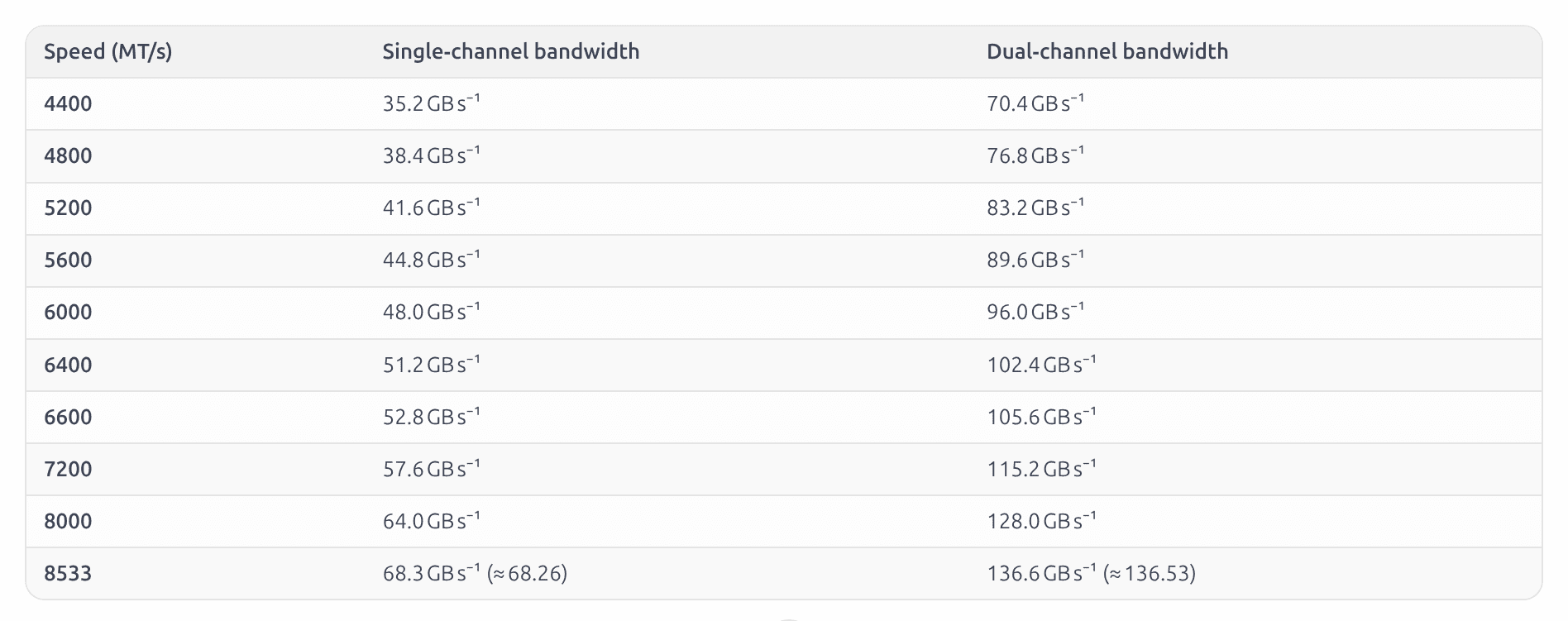
For your convenience, I asked gpt-oss-20b to generate a table of common DDR5 speeds and their bandwidth in single and dual channel configurations:
User Message
if DDR5-5600 memory in dual channel is 89.6 GB/s because DDR5 is a 64 bit interface, therefore transferring 8 bytes at a time.

Can you create a table to show me the bandwidth of DDR5 at these speeds with assumption of dual channel configuration?: 4400, 4800, 5200, 5600, 6000, 6400, 6600, 7200, 8000, 8533
Model Response
Below is a quick reference for the theoretical peak bandwidth of DDR5 memory **per channel** and in a standard **dual‑channel** configuration (two identical modules side‑by‑side).
The calculation is simply:

\[
\text{Bandwidth} = \text{Data Rate (MT/s)} \times 8~\text{bytes}
\]

* 1 MT/s = 1 million transfers per second.
* DDR5’s native bus width is 64 bits ≈ **8 bytes** per transfer.

| Speed (MT/s) | Single‑channel bandwidth | Dual‑channel bandwidth |
|--------------|--------------------------|------------------------|
| **4400** | 35.2 GB s⁻¹ | 70.4 GB s⁻¹ |
| **4800** | 38.4 GB s⁻¹ | 76.8 GB s⁻¹ |
| **5200** | 41.6 GB s⁻¹ | 83.2 GB s⁻¹ |
| **5600** | 44.8 GB s⁻¹ | 89.6 GB s⁻¹ |
| **6000** | 48.0 GB s⁻¹ | 96.0 GB s⁻¹ |
| **6400** | 51.2 GB s⁻¹ | 102.4 GB s⁻¹ |
| **6600** | 52.8 GB s⁻¹ | 105.6 GB s⁻¹ |
| **7200** | 57.6 GB s⁻¹ | 115.2 GB s⁻¹ |
| **8000** | 64.0 GB s⁻¹ | 128.0 GB s⁻¹ |
| **8533** | 68.3 GB s⁻¹ (≈ 68.26) | 136.6 GB s⁻¹ (≈ 136.53)|

> **Note:**
> * These figures are the **theoretical peak bandwidth**; real‑world performance will be lower due to command overhead, latency, and other practical factors.
> * The dual‑channel numbers assume both channels are fully utilized in tandem (i.e., a 128‑bit total bus width).

Feel free to let me know if you’d like the values expressed in GiB/s or any additional details!
The response processed at 16.10 tokens/s on my AERO X16 with some layers on the 5070 8 GB GPU and others on the 32 GB DDR5-5600 memory available. Not bad! Felt fast enough!
Back to the show...
If you test and experiment a lot during development, you might want to avoid additional cost or consumption of credits by running your code against an local LLM.
Here is an example prompt to perform semantic matching on a reference phrase compared to an incoming phrase.
Determine whether the given phrase semantically or exactly matches a reference phrase. You do not need to consider case sensitivity.

Give your output in JSON, adhering to the following schema:
{
	"result": <true|false>,
	"confidence": <0.0-1.0 in whether you are confident in your result>
}

Given Phrase: {given_phrase}
Reference Phrase: {reference_phrase}
An example usage where semantic matching is true:
... first portion of prompt here ....

Given Phrase: I love basketball.
Reference Phrase: I enjoy the sport: basketball.
The local LLM will return:
{
	"result": true,
	"confidence": 0.92
}
Now how about an example where it might fail?
... first portion of prompt here ...

Given Phrase: Toyotas are Hondas.
Reference Phrase: Toyotas are Subarus.
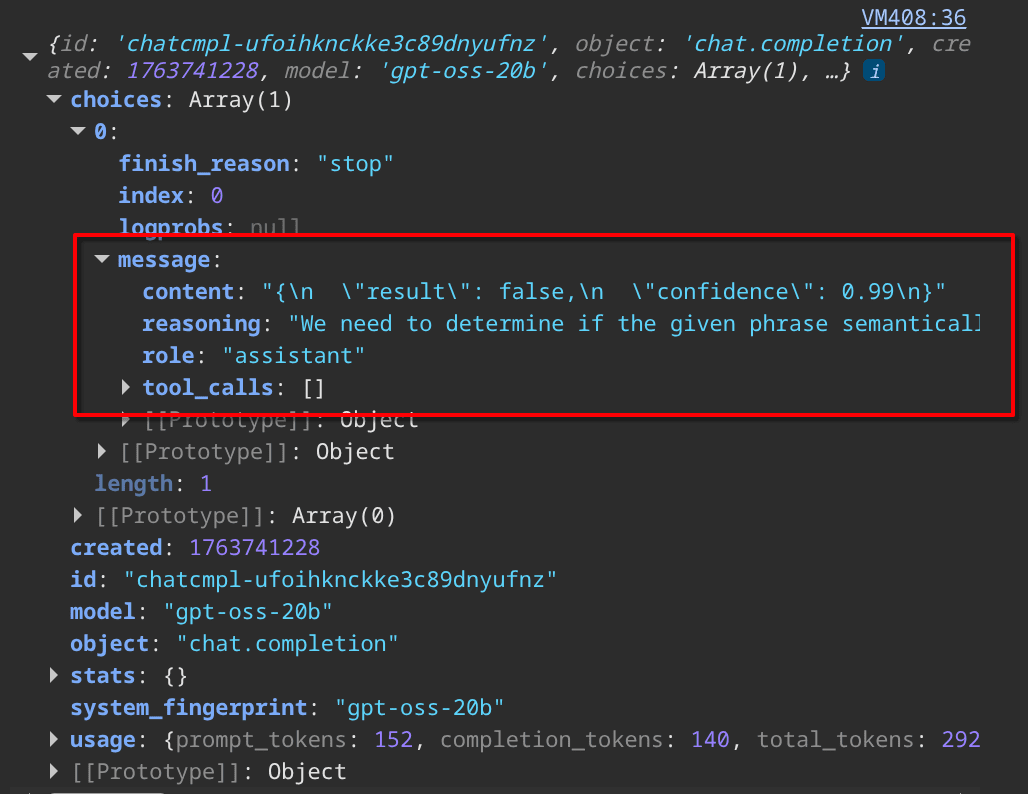
The LLM is very confident that these are not semantically the same:
{
	"result": false,
	"confidence": 0.99
}
Putting it together, we can create a simple JavaScript function:
async function semanticMatch(referencePhrase, inputPhrase) {
	const prompt = `Determine whether the given phrase semantically or exactly matches a reference phrase. You do not need to consider case sensitivity.


Give your output in JSON, adhering to the following schema:
{
	"result": <true|false>,
	"confidence": <0.0-1.0 in whether you are confident in your result>
}


Given Phrase: ${inputPhrase}.
Reference Phrase: ${referencePhrase}.
`;

	const response = await fetch('http://127.0.0.1:8000/v1/chat/completions', {
		method: "POST",
		headers: {
			"Content-Type": "application/json"
		},
		body: JSON.stringify({
			model: "gpt-oss-20b",
			messages: [
				{
					role: "user",
					content: prompt
				}
			]
		})
	});

	const responseJson = await response.json();
		return responseJson;
	}


	semanticMatch("Toyotas are Subarus.", "Toyotas are Hondas").then(result => {
	console.log(result);
});
When building features like this, you'll test your API integration dozens of times—checking edge cases, adjusting confidence thresholds, handling malformed responses. During development of this semantic matching feature, I can be aggressive on the endpoint as much as I want while I'm debugging. It allows me to code, test, fix and repeat as necessary to create great software. 😊
This is especially valuable when you're ready to deploy. You can stress-test your application logic locally with hundreds of requests to make sure your error handling and retry logic works correctly before you point it at a production API.
Image Augmentations using Image Generation/Editing Models
If you want to play with really powerful image generation models, there's a chance that you will run into OOM errors even after offloading the model to CPU as 32 GB RAM isn't enough.
Assuming you are okay with shortening the lifespan of your SSD in exchange for "education", here is how you can increase swap memory in your new laptop to be able to inference larger models.
Increasing Swap Space for Larger Model Inferencing
Get your swap filename:
ls /Mine was swap.img. So commands assume that filename:
sudo swapoff /swap.img
sudo fallocate -l 64G /swap.img
sudo chmod 600 /swap.img
sudo mkswap /swap.img
sudo swapon /swap.img
The code above increases swap memory to 64 GB. Given this increase with 32 GB of system RAM and 8 GB of GPU VRAM, this allows for a total of 104 GB of effective total memory. Not good for the SSD, but you will have fun. 😊
Image Editing Example - UI Mockup
I recommend to use ComfyUI for image generation and editing! It provides a lot of automatic handling of offloading for low VRAM systems.
I am not a designer, but I do appreciate a polished UI and good UX. Let's pretend I'm in the job market now after a year of being a freelancer.
I want to create a beautiful resume page, but I am not good with UI mockups/wireframing. I can draw something passable with a pen and paper though to communicate my ideas.
But why not just describe what I have in mind and letting Qwen-Image do the rest in creating a wireframe mockup?
User Prompt
Clean Figma-style UI wireframe mockup of a simple single-page resume website. White background, light gray layout boxes, thin dark gray lines, no real photos, only placeholders.

At the top, a large centered title text: "ROGER".
Directly under it, a subtitle: "Software Developer. Tinkerer of Stuff".

Below the subtitle, a main content area split into two columns:

Left column: a rectangular “welcome” text container with a light gray outline and the label "[TEXT]" inside as placeholder text.

Right column: a circular container with a black border, containing a simple placeholder silhouette labeled "Asian male photo".

Next section below is a bold section heading: "RESUME". Under it, two job entries stacked vertically as wireframe text blocks:

"2024 – Present — Freelancer"

"2020 – 2024 — Software Engineer at Big-Co"

Last section at the bottom is a heading: "EDUCATION". Under it, one entry:

"State University — 2010 – 2014"

The whole layout should look like a neat web page wireframe: consistent margins, clear hierarchy, aligned columns, simple typography, no color other than grayscale.
Model Response
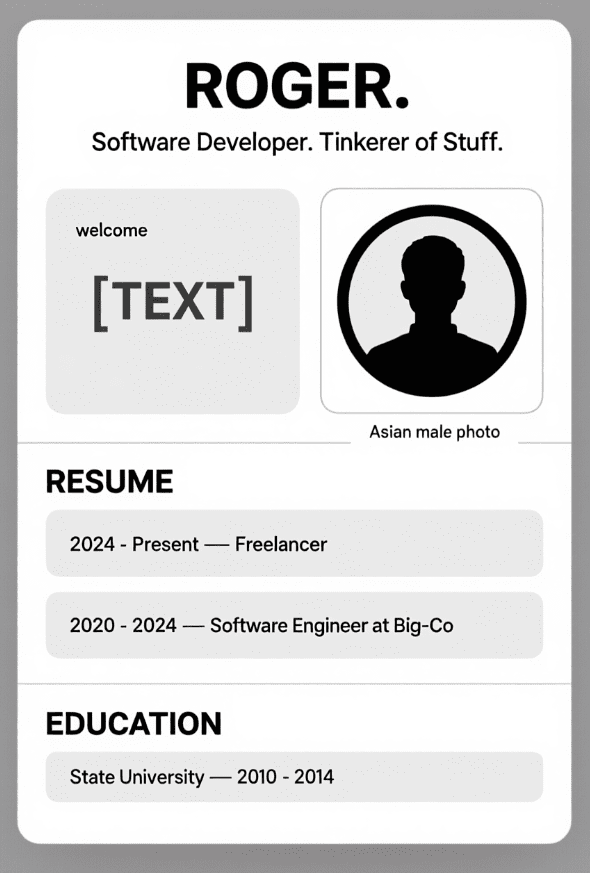
It doesn't look too bad, but I think it took the "asian male" thing too literally! That's fine for just a mockup... what if we throw this image to qwen3-vl-4b-Instruct and have it generate HTML code from the UI wireframe mockup? That would get us started on a nice resume!
User Message
Turn this image into a web page. Combine HTML, CSS and JS into a single file.Model Response
Preview:
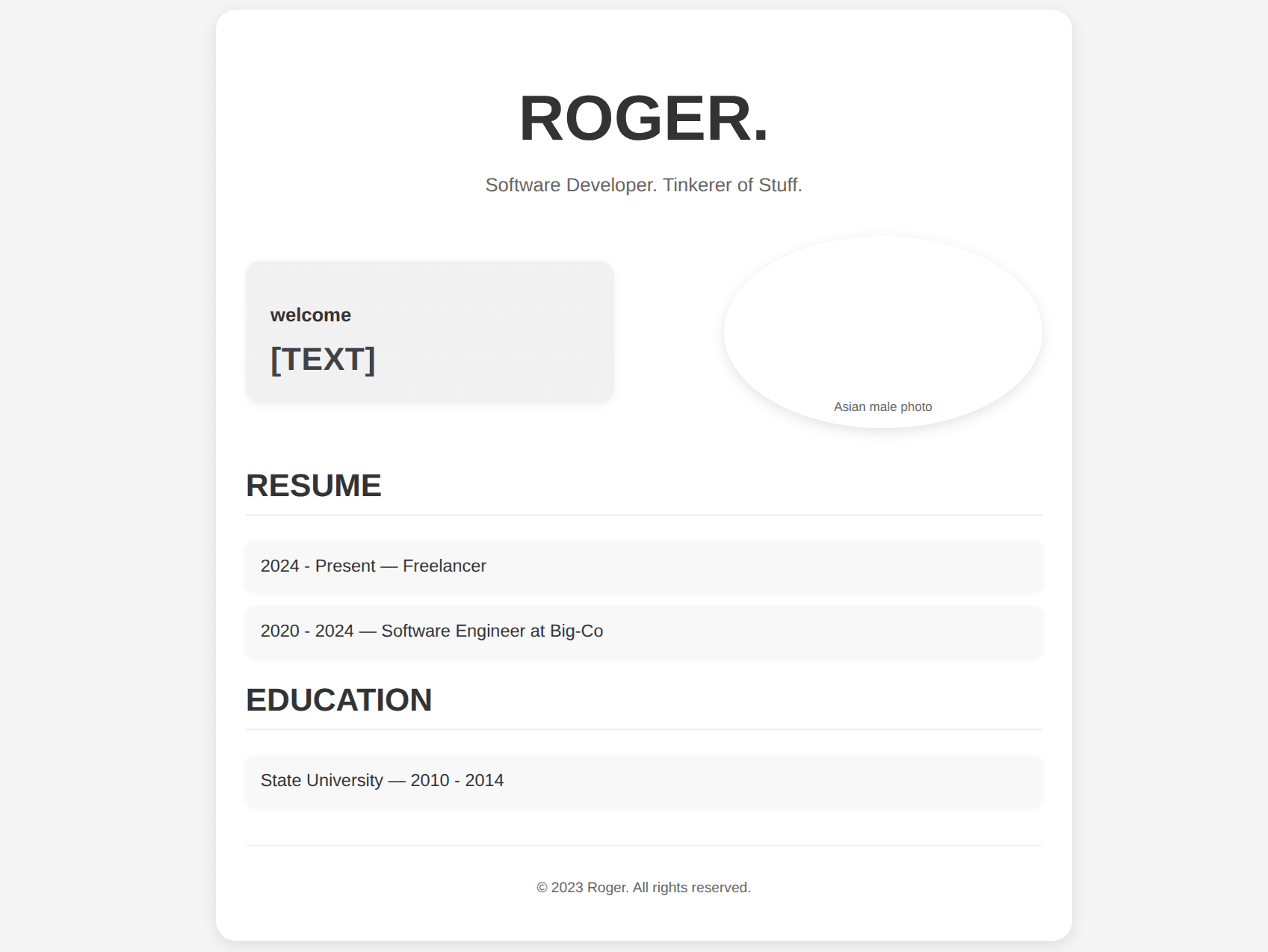
Overall, it is not a bad result, and the HTML that was generated was pretty clean. I would be able to modify it easily!
Video and Audio Transcription and Summarization (whisper)
I love this use case. I often record my meetings and find it really helpful to deep dive after the meeting is over to better understand what had been discussed. I create transcripts and summaries locally. This allows me to use a local AI model to further create documentation and diagrams for any development that I do.
Here's how you can get started with video/audio transcription and summarization using whisper.cpp and gpt-oss-20b in your competent laptop. 😊
First get some dependencies:
sudo apt install ffmpeg jq curlClone whisper.cpp to start creating transcripts.
git clone https://github.com/ggml-org/whisper.cpp.gitThe normal way to build whisper.cpp is to just run these commands:
cd whisper.cpp
cmake -B build
cmake --build build -j --config Release
The above command assumes CPU. However you can use `whisper.cpp` in the following way:
- CUDA (add
-DGGML_CUDA=1) - VULKAN (add
-DGGML_VULKAN=1) - CPU
Since my machine is equipped with an NVIDIA GPU, I'll use CUDA. So my commands to build will be:
cd whisper.cpp
cmake -B build -DGGML_CUDA=1
cmake --build build -j --config Release
Next get the whisper models. I like using medium.en - it is larger but it has better accuracy.
cd whisper.cpp
bash ./models/download-ggml-model.sh medium.en
Code!
You can pretty much reference all the code I am about to present here from my git-repo. You can find video-transcribe here: https://github.com/urbanspr1nter/video-transcribe
First, run this script to add WHISPER_PATH as an environment variable>
if ! grep -q 'export WHISPER_PATH=' ~/.bashrc; then
	echo 'export WHISPER_PATH=$HOME/code/repos/whisper.cpp' >> ~/.bashrc
	source ~/.bashrc
fi
Transcribe
Next, create a transcribe.sh file and make it executable:
touch transcribe.sh
chmod +x transcribe.sh
Edit it to contain the following contents:
#!/bin/bash

INPUT_FILE=$1
OUTPUT_FILE=$2

ffmpeg -i $1 -vn -acodec pcm_s16le /tmp/output.wav

$WHISPER_PATH/build/bin/whisper-cli \
	-m $WHISPER_PATH/models/ggml-medium.en.bin \
	-f /tmp/output.wav \
	-otxt > $OUTPUT_FILE

rm /tmp/output.wav
The script will just basically take $INPUT_FILE (video or audio) and extracts the audio as a 16-bit .wav file into /tmp/output.wav. We use that along with the whisper-cli and the medium.en model to transcribe the audio to text into the destination as specified by $OUTPUT_FILE.
You can now use it like this:
./transcribe.sh /path/to/input.mp4 /path/to/transcript_output.txtSummarize
This part assumes you have gpt-oss-20b already listening through an OpenAI API compatible endpoint. For myself, I just use lmstudio and start the server with the model loaded.
Create the summarize.sh script and make it executable:
touch summarize.sh
chmod +x summarize.sh
Edit the summarize.sh to have the following contents:
#!/bin/bash

HOST=$1
TRANSCRIPT_FILE_PATH=$2
SUMMARY_FILE_PATH=$3

ENDPOINT_URL=$HOST/v1/chat/completions
MODEL_NAME=gpt-oss-20b

echo "------------------------"
echo "Using the following parameters:"
echo "endpoint: $ENDPOINT_URL"
echo "transcript file input: $TRANSCRIPT_FILE_PATH"
echo "summary file output: $SUMMARY_FILE_PATH"
echo "------------------------"

if [ ! -f "$TRANSCRIPT_FILE_PATH" ]; then
	echo "Transcript file not found: $TRANSCRIPT_FILE_PATH"
	exit 1
fi

TRANSCRIPT_CONTENT=$(<"$TRANSCRIPT_FILE_PATH")
FULL_PROMPT="Summarize the following transcript extracted from an audio recording.

# Guidelines

1. Be detailed.
2. Do not include personal opinions or biases.
3. Do not include irrelevant information.
4. Do not include indications of timestamps that was given within the transcript.

# Summary

$TRANSCRIPT_CONTENT
"

JSON_PAYLOAD=$(jq -n \
	--arg model "$MODEL_NAME" \
	--arg prompt "$FULL_PROMPT" \
	'{
		"model": $model,
		"messages": [
			{
				"role": "user",
				"content": $prompt
			}
		],
		"temperature": 0.3
	}')

echo "Sending JSON payload."

SUMMARY=$(curl -s -X POST "$ENDPOINT_URL" \
	-H "Content-Type: application/json" \
	-d "$JSON_PAYLOAD" \
	| jq -r '.choices[0].message.content'
)


printf "%s\n" "$SUMMARY" > "$SUMMARY_FILE_PATH"
It is a pretty big script, but it basically takes the transcript as specified by $TRANSCRIPT_FILE_PATH and uses curl to make a `POST` request to /v1/chat/completions to get the summary text. jq is used to manipulate the JSON.
The summary text is saved to a file specified as $SUMMARY_FILE_PATH. We use the jq program again to extract the response contents relating to the summary.
Summarize the transcript like this;
./summarize.sh http://localhost:8000 /path/to/transcript.txt /path/to/summary_output.txtVideo/audio transcription and summarization is a really useful tool to have on your local computer. You may not want to have a cloud model transcribe your video or audio file due to having sensitive content. The best alternative is transcribe and summarize locally, and a NVIDIA 5070 8 GB VRAM laptop GPU with 32 GB DDR5 RAM is more than enough hardware to transcribe a video or audio file using the medium.en whisper model.
Conclusion
Phew, that was a long one! Overall, I think we can accomplish a lot with a laptop with 8 GB VRAM. It's just resource management and accepting some loss in inference speed. Some of the examples I have presented might seem pretty simple, but I just want to help get the creativity going and introduce what is possible. I specifically like scenarios where I can quickly generate diagrams and tables in markdown just by giving some context. It is very handy.
Is the Gigabyte AERO X16 a good buy? I am happy with it. I've been really into image and video generation recently and have already generated a lot of pictures and videos in genre of fantasy. Check these out: